Guide
Labelling the shelves so prices read right
How to use price tags and compartments in TCG Card Shop Simulator so what is on a shelf and what it costs are both readable.
Applies to
no version stated by this build (see the sources page)
Before you start
- A shelf or box with stock in it
- Price tags unlocked
- Cards if you are labelling card shelves
Steps
- Expect the right tag for the container rather than one tag everywhere.
price tags are spawned from a set of prefabs, with a separate one for an item box, a package box, a warehouse rack and a card - Know that a shelf gets a group of world interface elements, not one tag.
a shelf takes a group prefab of its own - Read the price panel's own lines instead of the tag alone.
the panel carries the item image, its name, the total and a line for how the price changed - Use the three arrows rather than guessing a trend.
the panel has separate arrows for a price going up, going down and not changing - Remember the tag's characters come from an atlas with a cell for each digit and currency mark.
the map holds an index for each digit, for a period, a comma, a minus and a space, and for the dollar, euro, yen, pound and cent marks - Check that the compartment will accept what you are putting in it.
a compartment records what it will accept and whether its label can be locked - Leave room for a tall item if the compartment grows upward.
a compartment has a recorded size and can be affected by a tall item or able to grow upward - For cards, use the placement the compartment offers for graded and ungraded cards.
a card compartment has places to put a card, including an alternative for one that has not been graded
Common mistakes
- Labelling a box with the same tag you use on a rack.
- Reading a price without looking at the change line beside it.
- Forcing stock into a compartment that was never meant to take it.
- Filling a compartment to the top and then adding something tall.
Related entries
 Pricing and the marketPrice tags for every contextPrice tags are spawned from a set of prefabs rather than one tag being reused everywhere.
 Pricing and the marketHow a price tag is drawnA price tag is a UI element with its own group and instanced renderer.
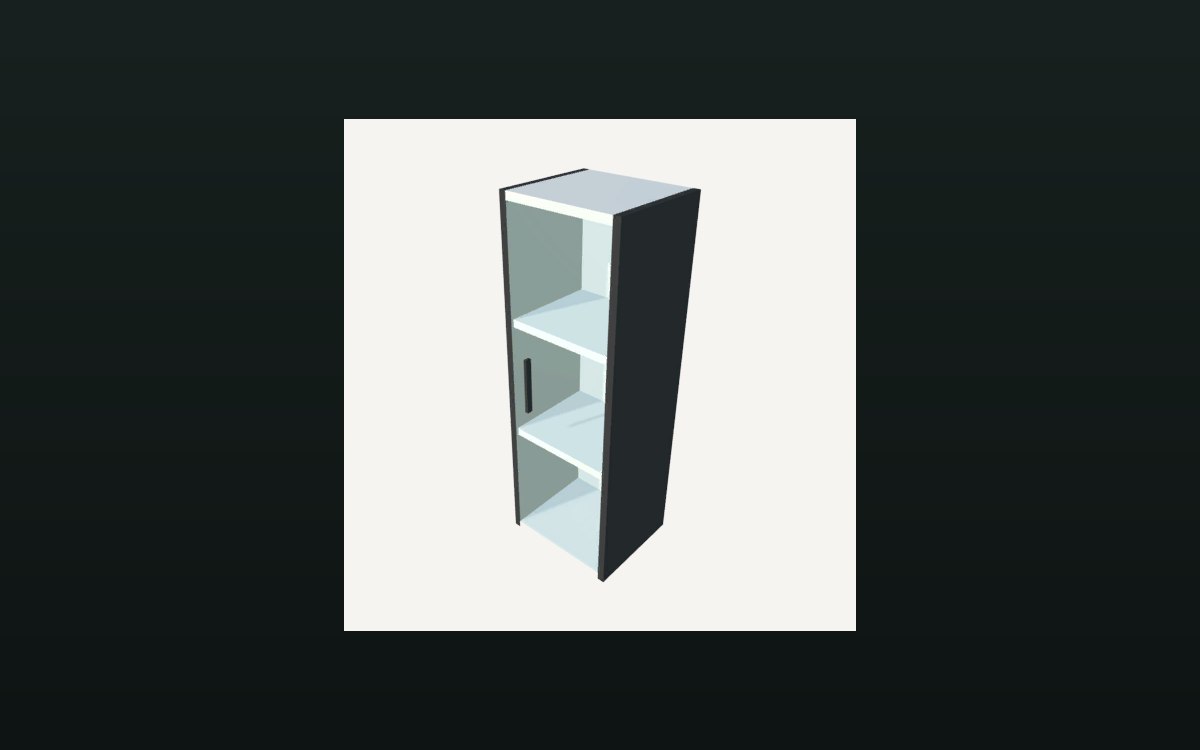 Storage and stockHow a shelf holds its stockA shelf is divided into compartments.
Related guides
- Repricing stock that has stopped selling
How to change a price in TCG Card Shop Simulator after the first tag: read the move, reset it at the shelf, check the tag, then clear what will not sell.
Sources
A local copy of the game, read only. Grounding for each step is on the technical reference pages; no number is estimated.